At a glance
- Record the room boundary and fixed features before placing furniture. Keep measured values separate from assumptions.
- Use consistent units. Check both the furniture footprint and the space occupied while doors, storage, and chairs are in use.
- Use plan view for geometry and a 3D view for the same arrangement. Check save status and keep an editable backup.
1. Decide what the floor plan must help you do
A furniture plan, a property record, and a construction drawing serve different purposes. For furniture planning, focus on the room boundary, openings, fixed obstacles, and actual furniture sizes. A construction project needs separate professional drawings and checks.
Choose one first task, such as testing a bed and wardrobe or comparing a dining-table position. Working on one room makes it easier to find missing measurements before recreating the whole home. Keep a simple sketch, a tape or suitable measuring device, and a list of unresolved details.
2. Measure the room and record fixed features
Sketch the room outline first. Give each wall and opening a clear label. Record each complete wall run, then record the positions and widths of doors and windows from a named corner. Note alcoves, columns, fixed cabinets, and changes in direction.
Keep the reference point consistent. If a door starts 3 ft from corner A, keep that note attached to corner A. Do not place it from a different corner by eye. Recheck a run when its parts do not agree with the complete wall measurement.
Record relevant heights separately, such as a window sill or a low ceiling. A top-down plan cannot show every vertical restriction. Mark uncertain values as assumptions and verify them before a purchase or building decision.
3. Use consistent units and draw the outline
Choose the units before entering measurements. HouseSpace uses feet for architectural dimensions. Convert inches into the correct fraction of a foot instead of entering them as decimal digits. Nine feet nine inches is 9.75 ft, not 9.9 ft.
For a drawing on paper, choose a scale and use it consistently for walls and furniture. In a digital planner, enter dimensions rather than judging length from screen size. A fit-to-screen or zoom action changes the display, not the real room size.
For an L-shaped room, draw the actual shape or record its component wall runs. Do not replace the whole outline with its widest bounding rectangle. The rectangle can include space that is not part of the room.
| Measurement | Decimal feet | Calculation |
|---|---|---|
| 6 ft 6 in | 6.5 ft | 6 + 6/12 |
| 9 ft 9 in | 9.75 ft | 9 + 9/12 |
| 12 ft 3 in | 12.25 ft | 12 + 3/12 |
4. Place openings before furniture
Place doors, windows, and connections to adjacent spaces from the measurement notes. Include the direction a door opens where it affects the layout. Then add fixed objects that constrain furniture placement.
Check how a person enters, crosses, and leaves the room. An empty rectangle in the plan can look available while it is needed for an entrance or an opening door. Treat furniture placement as the next step after the fixed structure is clear.
Build a plan, one layer at a time
See why the room outline comes first. Add openings, furniture, and the checks that make the drawing useful.
Start with the measured boundary
This example is a 12 × 10 ft rectangle. A complete outline comes before furniture or decorative details.
5. Add furniture at its actual size
Start with the largest required item. Enter dimensions from the real product or from furniture you measured. Then add the smaller items that must work with it. Keep the furniture footprint separate from the space needed to use it.
A dining chair occupies more space when someone pulls it out. A wardrobe needs space for its doors and the person using it. Inspect those actions alongside the route through the room. The required space depends on the actual item, activity, and people involved.
For example, a 10 × 12 ft rectangular room has a simple rectangular area of 120 sq ft. That figure alone cannot tell you whether a desk, bed, and wardrobe work together. Their dimensions, openings, and operating space determine the arrangement.
6. Test the workflow with the HouseSpace sample
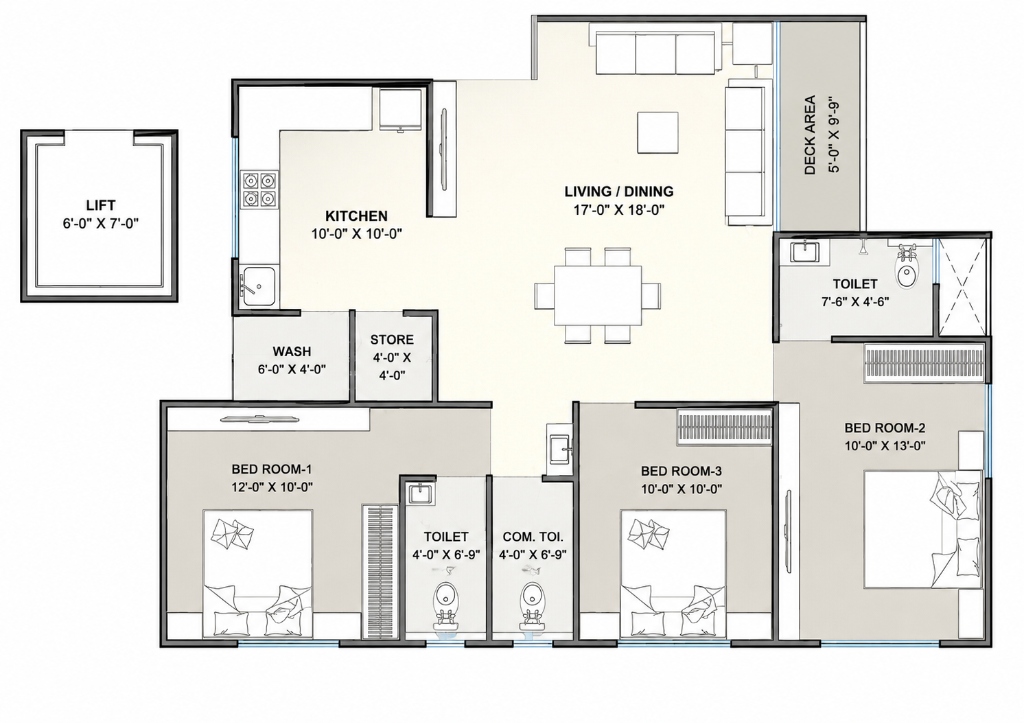
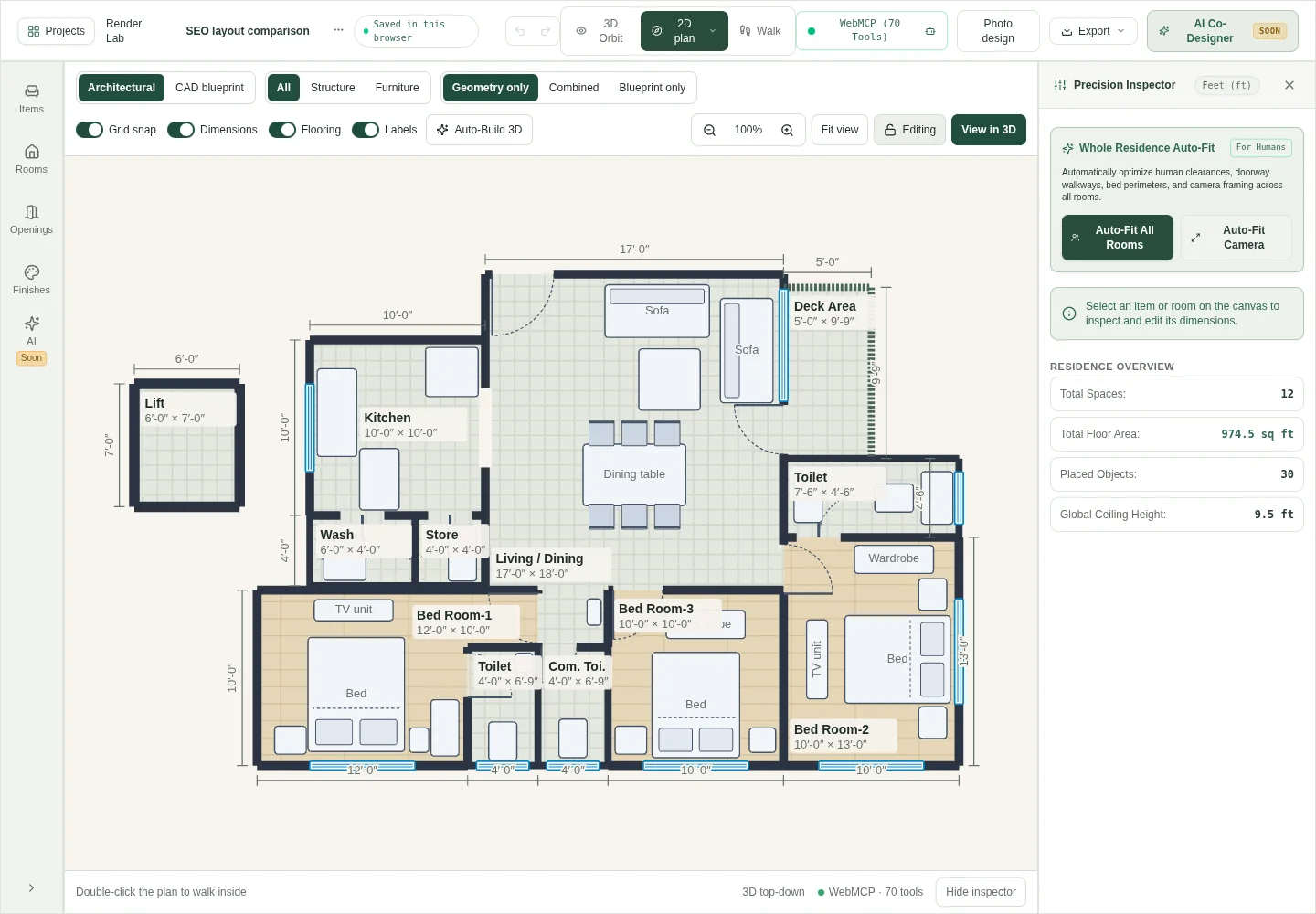
The sample provides a measured starting exercise before you draw your own home. Its source drawing labels the living/dining space as 17 × 18 ft. Other labels include a 10 × 10 ft kitchen and three differently proportioned bedrooms. Read the actual outline alongside those labels.
The local demonstration below selects one sofa, changes its position by 2 ft, and inspects the alternative in orbit view. All other furniture and room geometry stay fixed. This tests a single editing decision; it is not a clearance or accessibility assessment.
- Open the 3BHK sample and sign in to the studio.
- Duplicate the project if you want to keep a separate baseline.
- Switch to plan view and inspect the room labels and openings.
- Select one furniture item and change its position or dimensions.
- Switch to orbit view, then return to plan view for dimension checks.
- Check save status and export a project backup before leaving.
Video description: The furnished sample appears in plan view. A sofa is selected and its X position decreases by 2 ft. The revised plan is shown with the other furniture unchanged. Orbit view shows the same alternative in 3D, then the editor returns to plan view. The recording uses a local demo; production access requires sign-in.
7. Review the plan and keep a usable copy
Compare the finished drawing with the measurement notes. Check the complete room shape, opening positions, furniture dimensions, and any values marked as assumptions. Inspect the same furniture arrangement in plan and 3D before naming a preferred option.
Keep an editable copy as well as any image you use for discussion. An image can show the idea, but it does not preserve all the model data. In HouseSpace, confirm the project save status and export a backup from the project library. A browser-only copy stays on that device.
Name alternatives after the decision they test. “Desk beside window” is more useful later than several files named “final.” Note what you changed and what still needs verification so the next review can start from evidence.
Questions before you start
- What is the easiest way to make a floor plan?
- Start with one measured room. Draw its outline, place doors and windows, and add the largest furniture item at its real size. A small complete exercise is easier to check than an entire home drawn from memory.
- Can I make a floor plan without CAD experience?
- Yes. A simple planning task can start with a labeled sketch and room measurements. Test a browser planner with one room before a larger project. Detailed construction documentation is separate work.
- What measurements do I need for a floor-plan maker?
- Record each wall run, changes in direction, opening sizes and positions, and fixed obstacles. Add furniture dimensions and relevant heights. Keep the units and the corner used as a reference clear in your notes.
- Can I make a floor plan online for free?
- The current HouseSpace planning preview is free with sign-in and no card. You can open a sample or create measured rooms. Check current access terms and keep photo-generation limits separate from free planning.
- Does fitting furniture on the plan prove it will work?
- No. Also check door movement, storage access, chairs in use, and routes through the room. Verify real measurements and the needs of the people who will use the space.
Sources and review
Prepared by HouseSpace from its sample project and current product workflow; reviewed 16 October 2026. This is product guidance, not an architectural certification or an independent software review.