At a glance
- Use a clear photo that shows the room boundaries, openings and furniture relevant to the task.
- Write what to keep as well as what to change. Compare the source and concept at the same proportions.
- Inspect visual changes first. Then verify dimensions and furniture fit in a measured plan.
1. Choose a photo that supports the decision
Use a photo you own or have permission to use. Show the area you want to discuss, including the visible floor, wall edges and important openings. A corner view can show how two walls meet. Use another photo when an important part of the room remains hidden.
Keep the camera level and use light that lets you read the room. Avoid a heavily filtered image. An extreme wide-angle view can make nearby objects look much larger than distant ones. Keep that distortion in mind when reviewing the concept.
Remove unrelated sensitive details from the image before uploading it. Family photographs, letters, screens and reflective surfaces can reveal information you did not intend to share. Keep the full original privately if you make a cropped working copy.
- Show the door and window edges that the concept must retain.
- Keep fixed features visible, such as a radiator or built-in storage.
- Do not use a furniture close-up to judge an entire room layout.
- Record room and furniture dimensions separately from the photograph.
2. Prepare the image and keep the source
HouseSpace Photo Design accepts still JPEG, PNG and WebP images. Keep the file below 12 MB and within the 24-megapixel limit. The browser prepares a working image with a longest edge of up to 2,048 pixels. HEIC, SVG and GIF are not supported photo uploads.
Convert an unsupported image to an accepted format before uploading it. Keep a separate original so you can compare details later. Do not enlarge a small, unclear file and assume that the extra pixels restore missing room information.
Name the working image by the room and view, such as “Living room toward window.” Use the same source for the alternatives you want to compare. A new camera view introduces another difference and can make the style comparison harder to interpret.
3. State what must stay and what can change
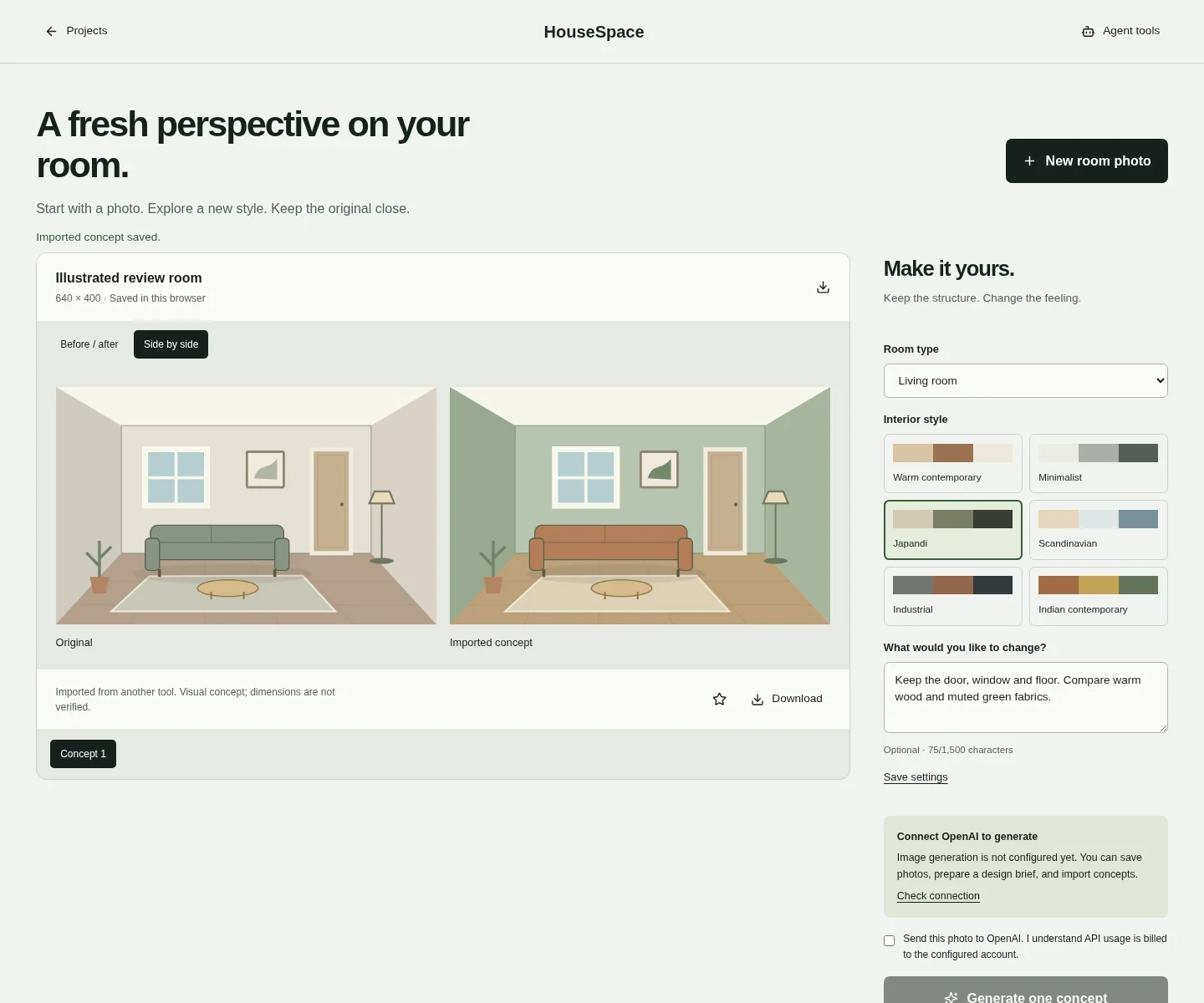
Choose a room type and a design direction. Then add instructions about the specific room. In HouseSpace, the style choices include Warm contemporary, Minimalist and Japandi. The optional instruction field accepts up to 1,500 characters.
Example brief: “Explore warm wood and muted green fabrics. Keep the existing door, window and floor. Retain the sofa and add a reading light beside it. Do not add openings or remove fixed storage.” This gives you a short list of conditions to inspect after the result arrives.
Separate a visual request from a dimension requirement. “Keep the sofa” does not prove that a pictured replacement has the same size. “Preserve the window” is an instruction to check, not a guarantee. Record the items that must match the real room.
| Keep | Explore | Verify separately |
|---|---|---|
| Door, window and room outline | Wall color and fabric direction | Actual opening positions and room dimensions |
| Required sofa and fixed storage | Reading light and small accessories | Furniture dimensions, sockets and storage access |
| The same camera view | A warmer or cooler material palette | Real samples under the room lighting |
4. Review the concept against the source
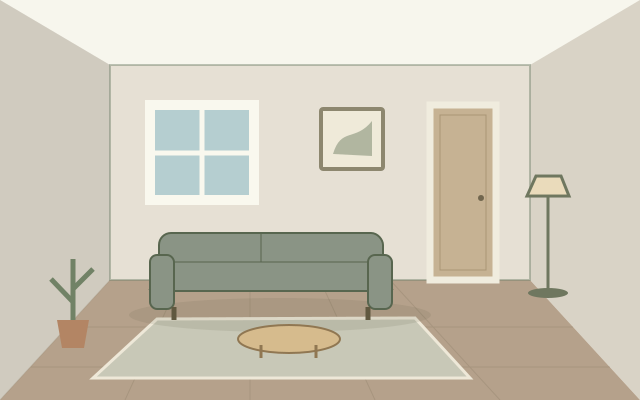
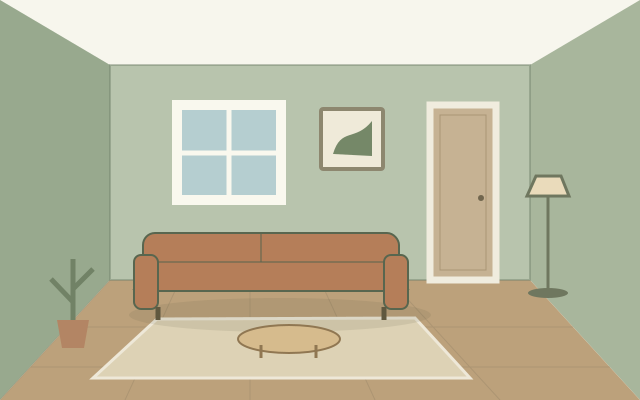
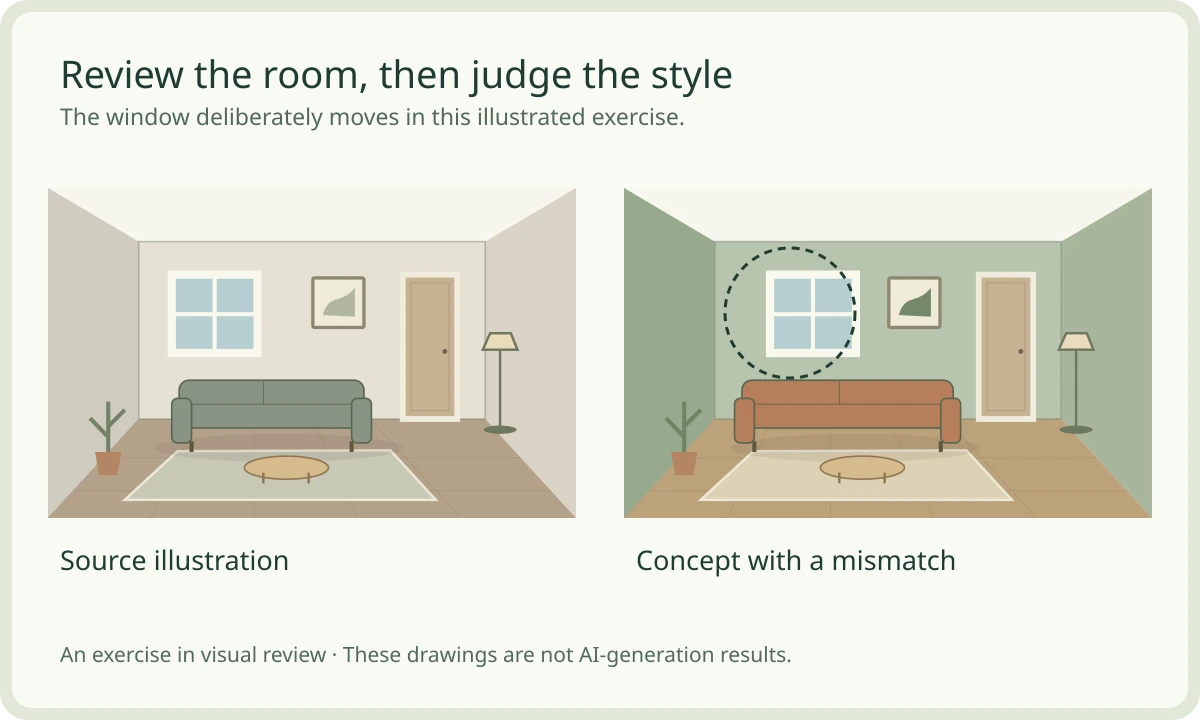
Use the slider to reveal the illustrated concept. Then select the window, door or sofa check. The window moves deliberately in this teaching example. The door remains in place. The sofa changes appearance and width, but the drawing does not establish a real product size.
This controlled exercise shows a review method. It is not an AI model benchmark or a claim about how often a generator changes windows. Both images are original HouseSpace illustrations. The article exercise does not upload a photo or call an image-generation service.
For your own room, compare the source and result at matching proportions. In Photo Design, Before / after is available for matching image proportions. Different proportions use Side by side without cropping. Look at boundaries before switching attention to finishes.
Look past the new style
Compare the same illustrated view. Find the changed window, inspect the retained door, and question the sofa size.
The window shifts in the concept
This deliberate mismatch breaks the example brief. Keep the useful style idea, then correct or reject the changed opening.
Both images are original drawings. The window mismatch is intentional. This lesson does not upload images, generate a concept or measure a real room.
5. Check the room in a consistent order
Start at a recognizable corner and follow the wall edges. Count the visible openings. Check whether a window changed position, a door disappeared or a built-in object was covered. Then compare the floor boundary and any visible ceiling changes.
Next, inspect the required furniture. Check whether its form changed, whether a chair blocks storage, and whether a pictured item seems to intersect a wall. Keep a list of visible mismatches. Do not infer hidden dimensions from shadows or perspective.
Finally, compare the appearance choices. Ask which part of the palette works with the items you will keep. Test real material samples in the room. A monitor image and a generated surface do not establish the exact color or finish of a purchased product.
- Mark a changed fixed feature as a mismatch, even if the concept looks attractive.
- Keep the useful style direction and revise the brief where needed.
- Measure the required furniture and check it in an editable plan.
- Save the source, chosen concept and unresolved questions together.
6. Use Photo Design with clear access and cost expectations
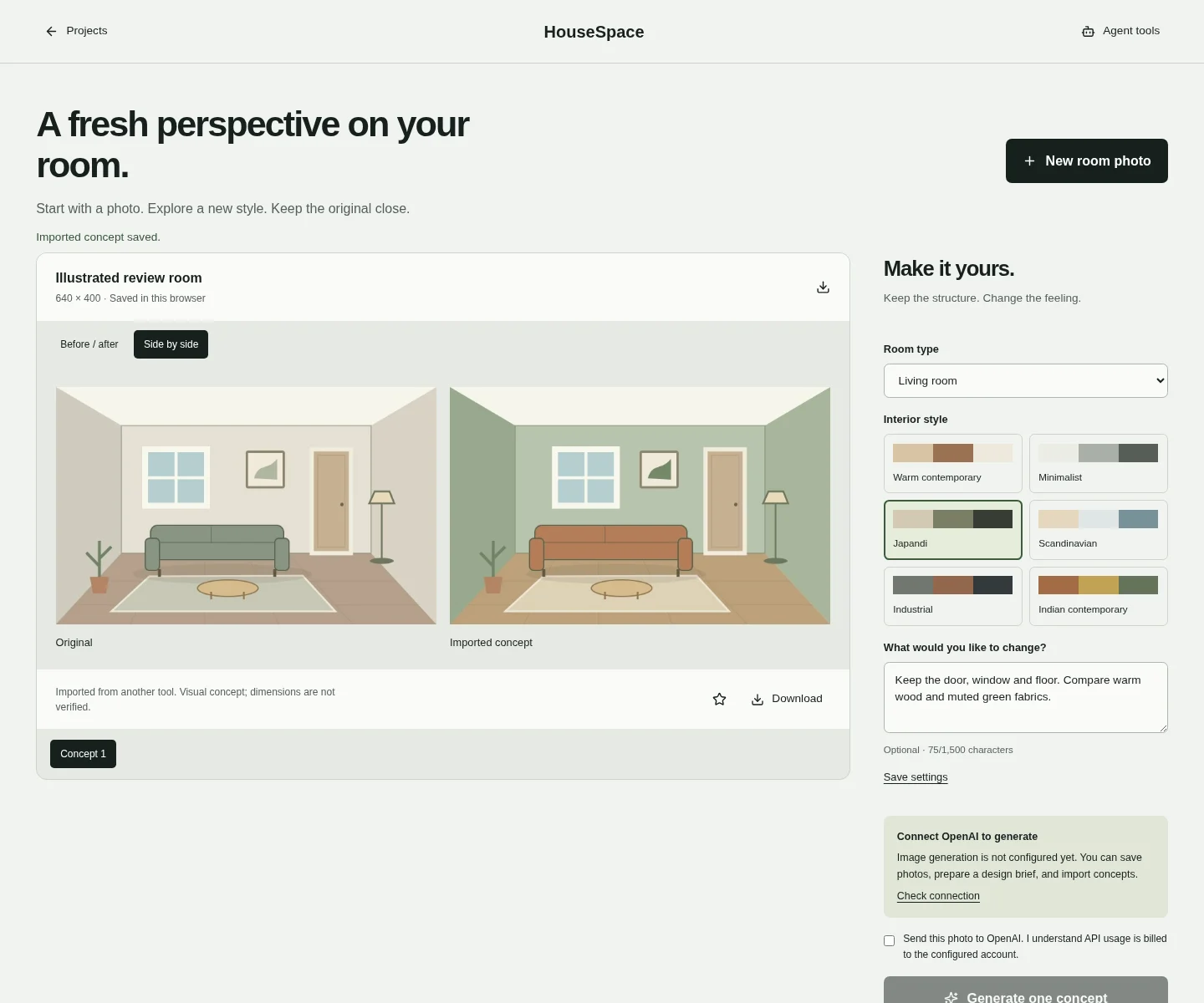
Sign in, open Photo Design and select New room photo. After uploading, choose the room type, style and instructions. Use Save settings to keep that brief. Check the connection status before expecting in-app image generation.
Generation is a separate action. It sends the photo to OpenAI and requires the cost-consent checkbox. API usage is billed to the configured account, and the workspace shows the available usage limit. Preparing a brief, uploading and comparing do not call OpenAI. Do not read the planning preview as unlimited free image generation.
If generation is not configured, open Design brief & imported concepts. Download the brief or use Import concept image for a result you already have permission to use. A prepared brief does not generate an image. The workspace labels imported and generated concepts separately.
Photo Design stores a private cloud library when the deployment has that storage configured. A local-library fallback exists otherwise. Check the displayed storage state and download images you want to retain. A photo library and an editable architectural project are different forms of saved work.
Questions before you start
- Can AI redesign a room from one photo?
- It can create a visual concept from the visible room. One photograph can hide openings, depth and other important information. Review the result against the source and keep measurements as separate evidence.
- Will the AI preserve my windows and doors?
- State that requirement in the brief, then inspect the result. HouseSpace includes preservation instructions in its photo brief, but a prompt is not proof that an image preserved every feature.
- Can I upload an iPhone HEIC image?
- Convert it to JPEG, PNG or WebP before using HouseSpace Photo Design. Keep the upload below 12 MB and within the 24-megapixel limit.
- Can I compare concepts without generating another image?
- Yes. HouseSpace can compare saved results and import a concept image. Preparing a brief and comparing existing images do not call OpenAI. In-app generation is a separate configured action with API costs.
- Is the interactive example a real AI before-and-after result?
- No. It uses two original illustrations with a deliberate window mismatch. The example teaches a review method and does not demonstrate image-generation quality.
Sources and review
Prepared by HouseSpace from current product source, a local Photo Design exercise and original teaching illustrations; reviewed 16 October 2026. This is product guidance, not an architectural certification or an independent software review.