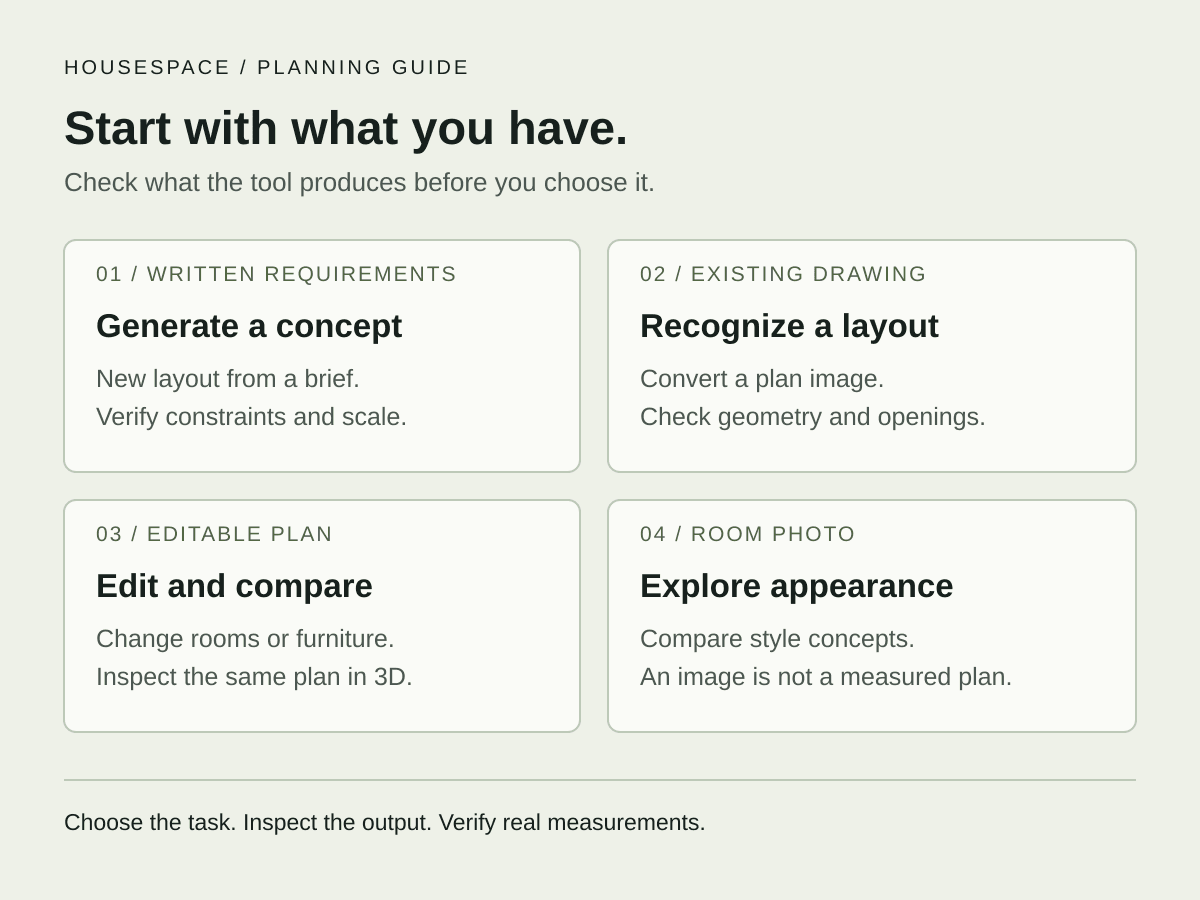
At a glance
- Generation starts from requirements. Recognition starts from an existing drawing. Editing changes an already editable plan.
- Check whether the output contains editable geometry, a rendered image, or both. Verify scale before using its dimensions.
- Use HouseSpace to explore its measured sample or create rooms manually. General automatic conversion of arbitrary blueprints is not currently available.
What does an AI floor planner actually produce?
The label alone does not tell you the output type. A convincing top-down picture may show furniture and room names without containing editable walls. An editable model stores separate elements that you can select and change. A rendering is an image made from a model or an image-generation process.
Before choosing a tool, decide what you must change after the first result. Moving a sofa needs a different output from changing a bedroom wall. Ask whether you can edit the required element and inspect its dimensions. Do not infer those capabilities from a polished preview.
For an existing property, your own measurements remain the starting evidence. For a new idea, list the room requirements and site information you have. Keep assumptions visible so that a suggested layout does not silently become a statement about the real building.
Compare generation, recognition, editing, and photo concepts
Start with the input you already have. This makes it easier to compare tools without treating every AI feature as the same operation.
| Workflow | Starting input | Useful output | Check next |
|---|---|---|---|
| Generate | Written brief or room requirements | A proposed new arrangement | Required rooms, constraints, dimensions, and editability |
| Recognize | An existing floor-plan drawing | Recreated plan elements | Scale, wall positions, doors, and missing details |
| Edit | An editable project | A revised plan using the same geometry | The changed element and its effect on adjacent space |
| Photo concept | A room photograph | An appearance or furnishing concept | Whether openings and proportions still match the actual room |
Choose a starting point
The same AI label can describe very different tasks. Choose an input to see the difference.
Generate a starting idea
Turn room requirements into a proposal. Check each requirement against the result, then confirm whether its rooms and walls are editable.
Verify the brief and dimensions.Concept diagrams explain the workflows. They are not generated results or a claim that HouseSpace supports every workflow.
Write a brief that a layout can be checked against
A useful brief separates fixed conditions from preferences. Fixed conditions can include an existing room boundary, an opening, or furniture you must keep. Preferences can include a larger dining area or a desk near daylight. Mark information that still needs verification.
For example: “Keep the existing living-room boundary and deck opening. Keep the dining table. Compare a different sofa position. Show the same arrangement in plan and 3D.” This brief creates a specific comparison rather than asking for an undefined better home.
If the tool accepts written requirements, inspect how each requirement appears in the output. If it does not, use the brief as your manual editing checklist. The same written task helps you compare results without changing the goal midway.
- List the room or home you are planning and the units you use.
- Record the dimensions you measured and the assumptions you still need to check.
- Name the fixed features and furniture that must stay.
- Choose one decision to test, such as seating placement or dining access.
- State the output you need: an image, editable geometry, or both.
Check scale and geometry before judging the appearance
Verify a known wall length, then check another dimension elsewhere in the plan. One correct number cannot establish that the whole drawing is scaled correctly. Check room shapes, openings, and any recesses or projecting areas.
Next, inspect the furniture with dimensions from the items you intend to use. A generic sofa can be useful for an early comparison, but its footprint may differ from the product you buy. Include door movement, open storage, and chairs while they are in use.
Inspect the same result in plan and 3D. Plan view supports position and dimension checks. A 3D view helps you discuss the relationship between objects. Neither view, by itself, establishes structural suitability or permission to build.
Try a real measured-planning example in HouseSpace
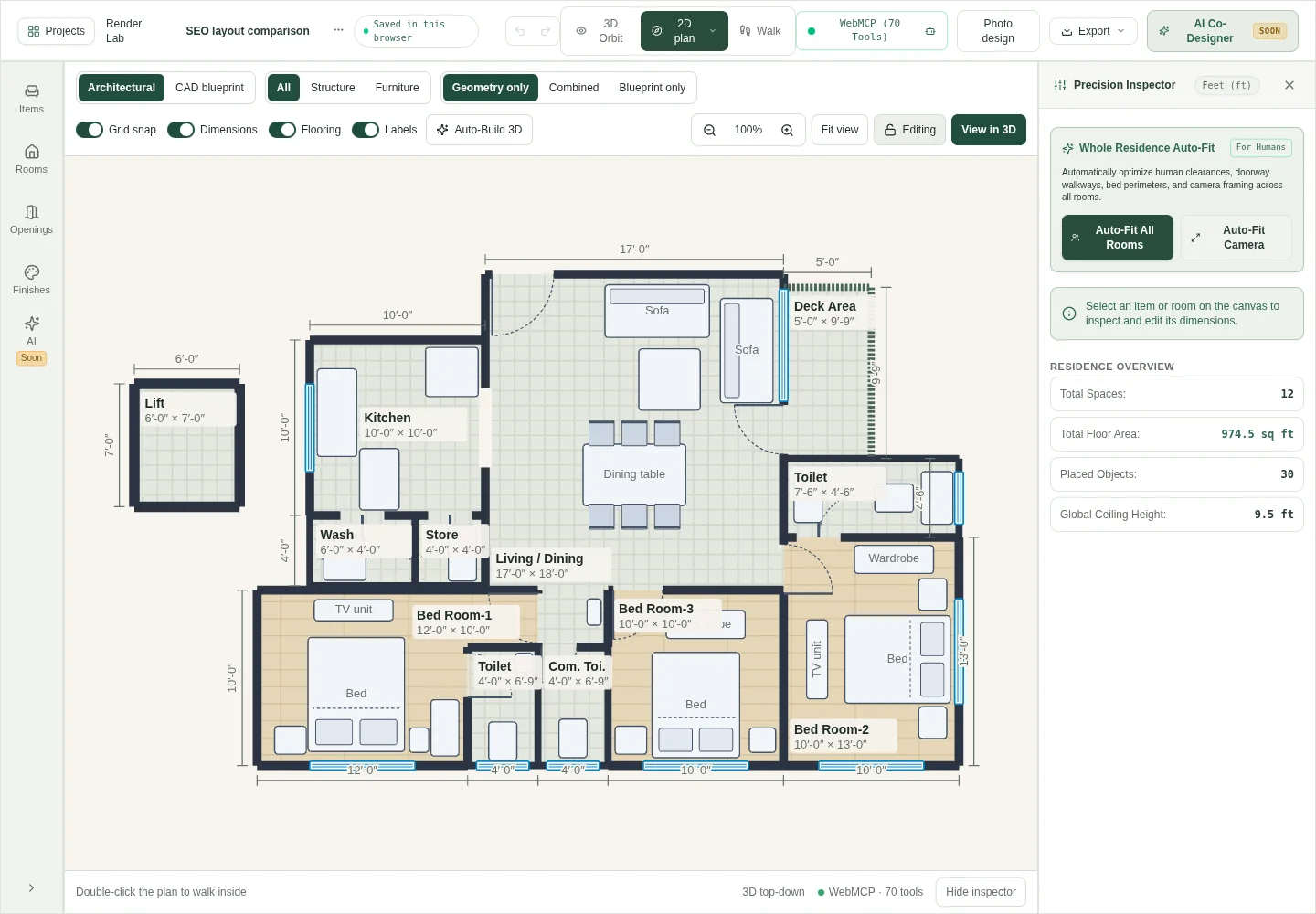
The bundled HouseSpace 3BHK gives you an editable starting point. Its reference drawing labels the living/dining room as 17 × 18 ft. The modeled outline also includes an alcove, so that label is not a complete description of its shape.
Open the sample, inspect its openings, and move one furniture item. Compare the revised plan with a 3D view. The screenshot below comes from a fresh local demonstration copy of that sample. It is an editing example, not evidence of automatic AI generation.
The current planning preview requires sign-in and does not ask for a card. Start with the sample or create measured rooms manually. An AI connection, where available, is a separate workflow; opening the sample does not create that connection or recognize your own blueprint.
Check access, editing limits, and saved output
Before a long session, complete one small task from start to finish. Confirm that the free or paid access level includes the operation you need. Generation credits, imported files, high-resolution images, and editable exports can have separate conditions.
Check how you can keep and reopen the result. An image download, an editable project backup, and account syncing are different forms of output. Choose the form that supports your next task. For HouseSpace, check the project library save status and keep a backup before changing devices.
If a result does not satisfy the brief, record the missing requirement and correct it. This creates a useful comparison history and helps you judge the amount of manual work involved.
Questions before you start
- Can AI generate a floor plan from a written description?
- Some tools accept written requirements and propose layouts. Check the documented input and output for the specific tool. A generated picture does not necessarily contain editable walls or verified dimensions.
- What is the difference between an AI floor plan and a 3D floor plan?
- AI describes part of the process used to create or change a plan. 3D describes how a model is represented. A manually created plan can have a 3D view, and an AI-generated image may not contain a usable 3D model.
- Can I upload any floor plan into HouseSpace automatically?
- General automatic conversion of arbitrary uploaded blueprints is not currently available. Use the bundled editable sample or create measured rooms manually. A sample entry is not an upload recognizer.
- Can I use AI floor plans for construction?
- Use them to explore ideas and prepare questions. A concept does not establish site suitability, structural safety, local compliance, or construction accuracy. Have the real design checked by the appropriate professionals.
- Are AI floor-plan tools free?
- Access terms vary by product and operation. Check account requirements, generation limits, editable output, and current pricing. HouseSpace has a free planning preview with sign-in; photo generation has separate availability and limits.
Sources and review
Prepared by HouseSpace from its sample project and current product workflow; reviewed 16 October 2026. This is product guidance, not an architectural certification or an independent software review.