AI interior design assistance in your open project
Connect a compatible AI agent to HouseSpaceAI to edit rooms, arrange furniture and update finishes. Review changes in the same Studio project you can edit yourself, with undo for supported design actions.
Public previews and guides are available before sign-in. Sign in to edit and save a design.
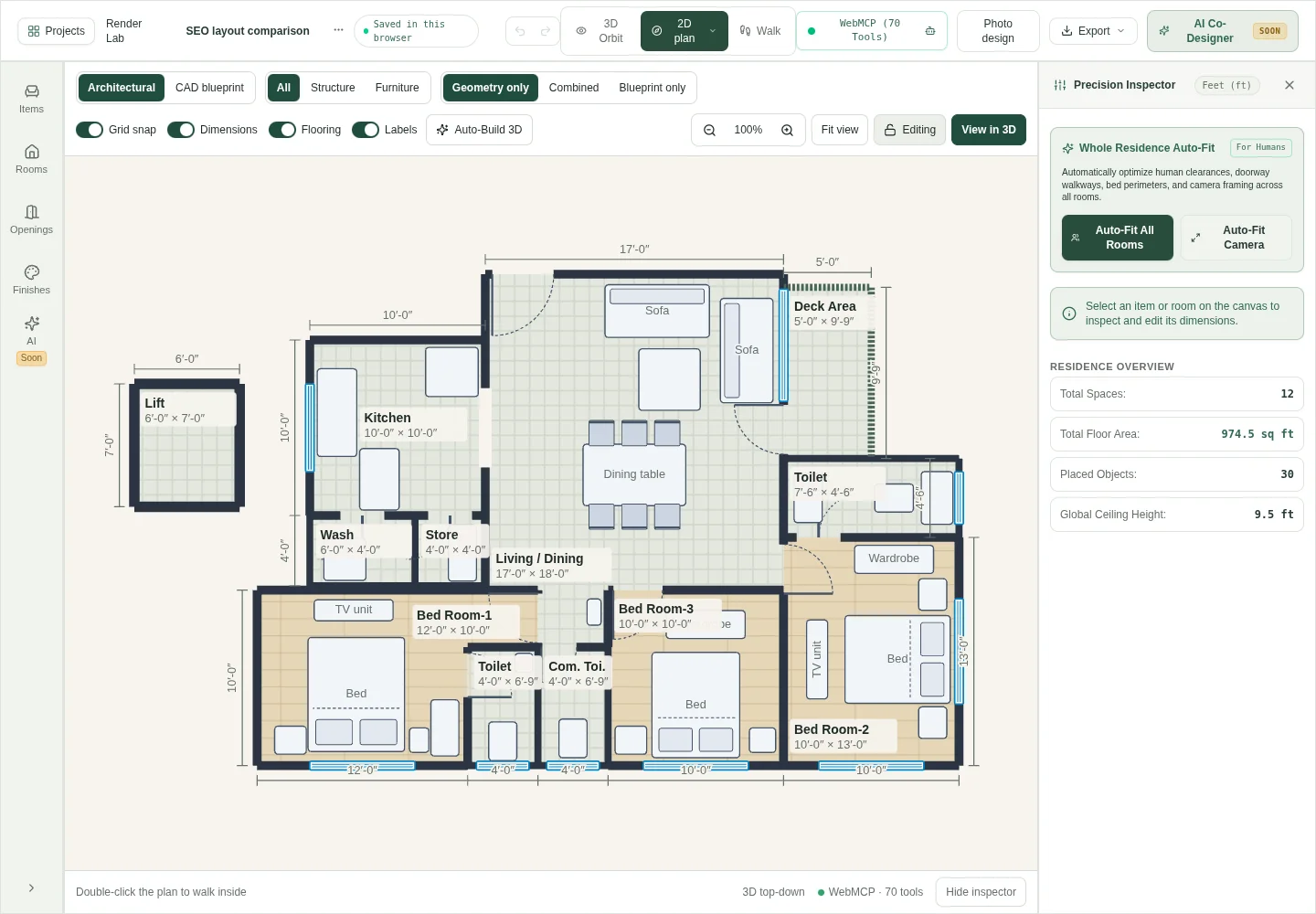
Preview of the furnished 3BHK sample. Open the studio to edit dimensions and furniture.
Give the connected assistant a specific room task
Ask for a measurable change, inspect the result, and continue from the revised layout.
Open a project and the connected assistant tools.
Connect a compatible agent and describe a room, furniture, or finish change.
Review the result in your project and use undo when needed.
Describe an edit you can check
Name the room, furniture or finish you want to change and give relevant dimensions. For example, ask to move a dining table within a named room, then inspect its position and the route past the chairs. A compatible agent must be connected; the planner is also usable manually.
Stay in control of the active design
The agent uses the project tools exposed by the open browser session. Actions that require review wait for your approval. Inspect the active project after an edit and use undo for supported scene changes when the result needs revision.
What a connected design assistant can use
| Workflow | What you can use |
|---|---|
| Input | An open studio project and a compatible connected agent |
| Output | Edits to the active project |
| Review | Check results visually and use undo to revise changes |
Questions before you start
- Is a built-in AI chatbot required to edit my home?
- No. Rooms, furniture and finishes can be edited directly. Connected-agent assistance is optional and depends on a compatible agent and browser integration.
- Can an agent edit the same layout I see in the Studio?
- Yes. The supported project tools act on the open Studio state. Review the room, object and dimensions in the active project after the action.
- What happens when an action needs my approval?
- The action waits in a confirmation dialog. Review the details and approve or reject it. Multiple approval requests queue separately; a waiting action should not be resubmitted.
Keep shaping your space.
Choose the next tool for your project.